

🚀 Getting Started
Follow these steps to get up and running with Olympus in minutes.
🔑 Step 1: Log In with Privy
- Join the Valhalla Discord and make sure you've been assigned the Olympus User role.
- Visit the 👉 Olympus Website
- Log in using Privy — you can sign in directly with your Discord account.
- Once authenticated, you'll be taken straight to the Olympus Dashboard.
👛 Step 2: Burner Wallet Setup
When you log in for the first time, the app will automatically create a burner/trading wallet for you.
You'll see your trading wallet's address displayed in the Trading Wallet panel.
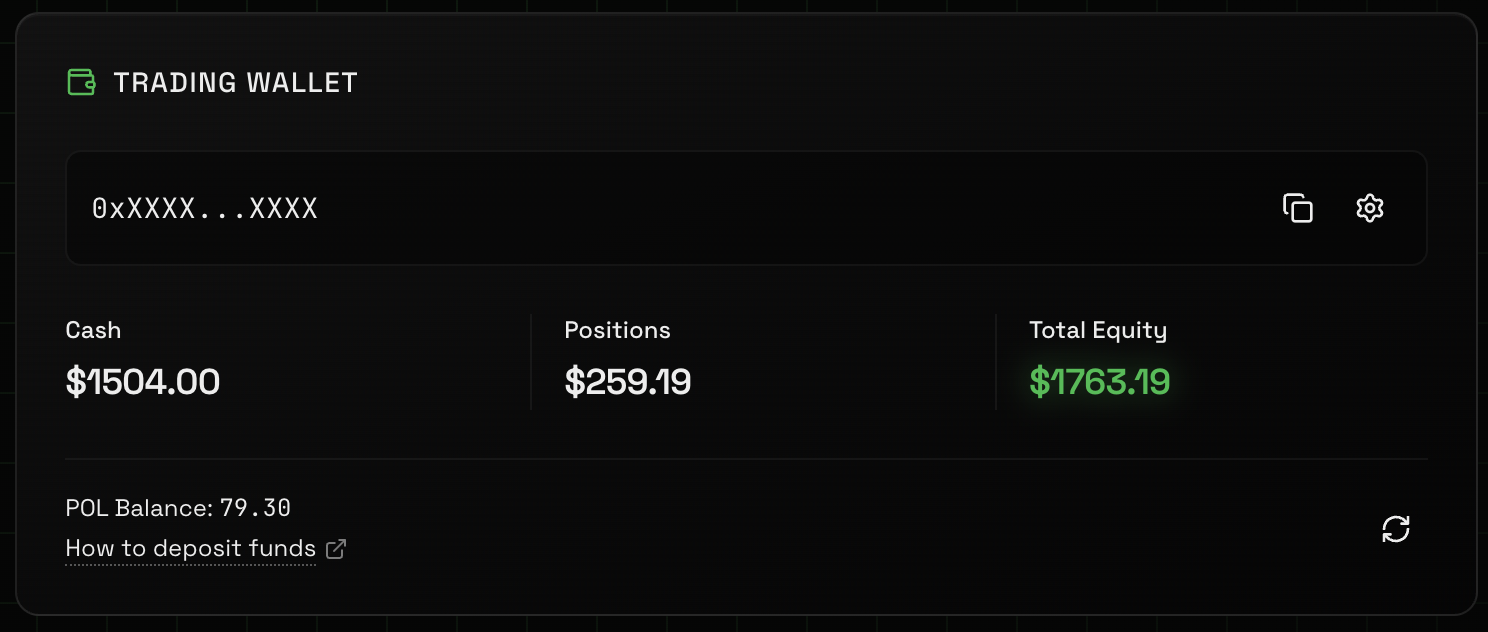
💵 Step 3: Fund Your Wallet
Send USDC and a few dollars worth of POL on the Polygon chain directly to your trading wallet address.
💡 Don't have USDC or POL on Polygon yet?
Use a bridge such as deBridge to convert assets (e.g. SOL → USDC on Polygon → your trading wallet).
Future updates will allow direct bridging to your Olympus wallet, right on-site.
Once the transfer is complete, your Balance will update in USDC.
At the top of the dashboard you will see a red bar appear, prompting you to swap USDC to USDC.e.
Click YES as USDC.e is the currency Polymarket uses to trade on their platform.
👤 Step 4: Follow a Wallet
To copy trade, you first need to follow a wallet:
Find wallets to follow:
- Browse the Polymarket Leaderboard
- Or check out Polymarket Analytics
- Or PolyNoob's site
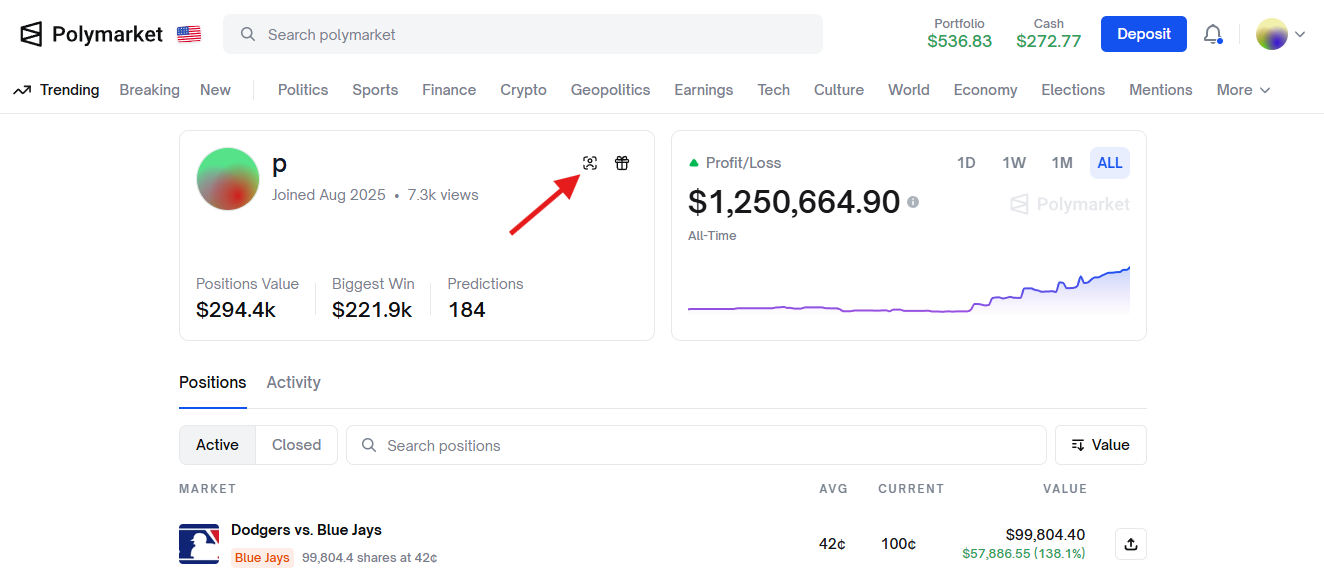
In Olympus:
- Click Followed Wallets tab
- Then click the green + Add Wallet button
- Paste the copied wallet address
- Set your Max Trade Size
- Click Add Wallet to start following

📢 Step 5: Set Up Discord Webhooks
- Use this video guide to create a discord webhook 👉 https://www.youtube.com/watch?v=xIZXDdVwNaE
- Copy the Webhook URL.
- In the top right corner of the Olympus app click the cogwheel, then click on Edit Settings.
- Input the copied Discord Webhook URL and click Test Webhook to test Global webhook.
- If done correctly you should receive a message in your discord channel.
- Save changes — your bot will now send trade alerts and updates directly to your chosen Discord channel.
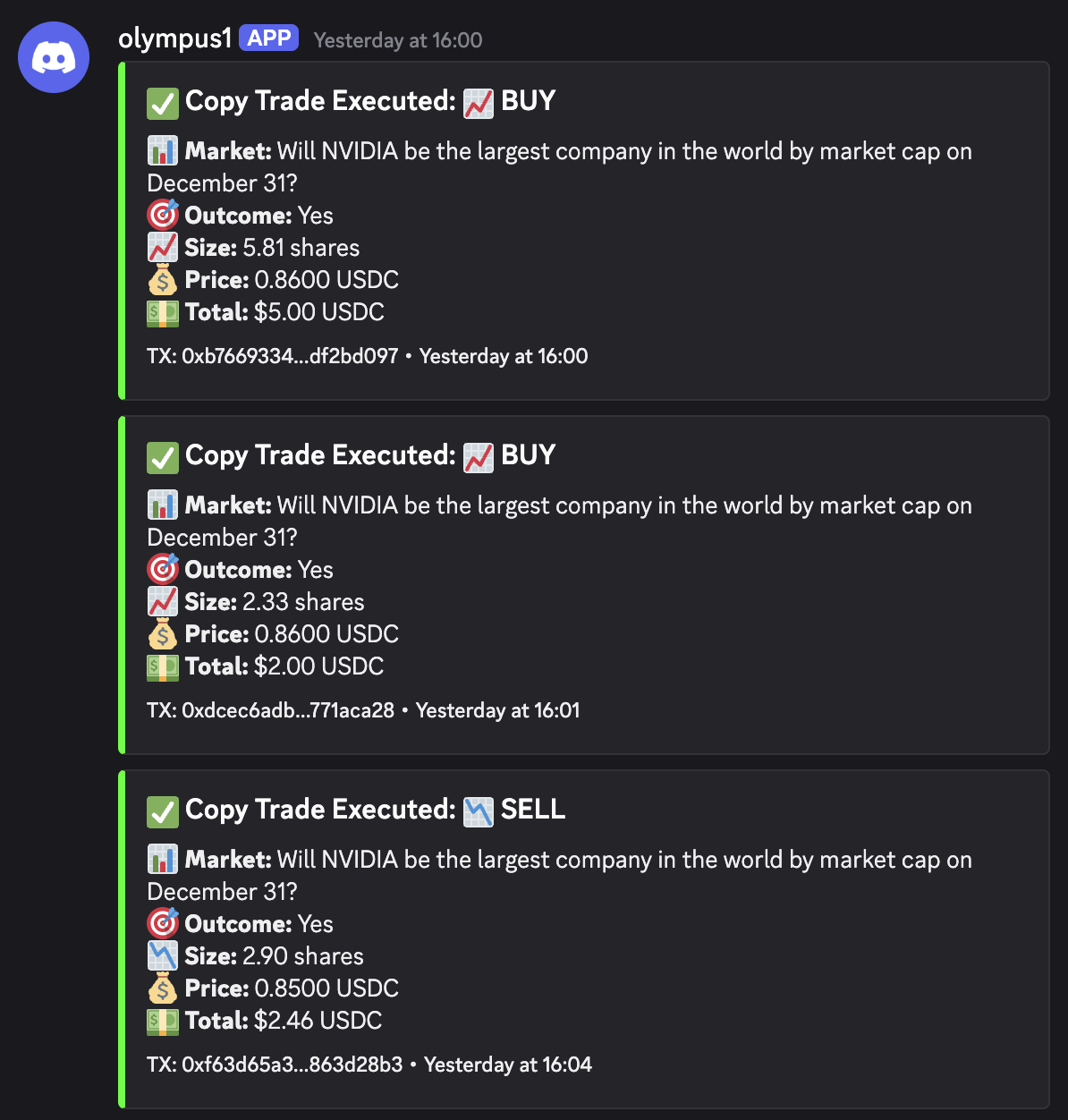
You can create multiple webhooks for multiple wallets by adding webhooks in wallet-specific settings, or you can reuse the same webhook for all wallets.
💡 Why set up a webhook?
It lets you receive real-time notifications of trades your bot executes — perfect if you want updates without checking the dashboard constantly.
❗ Note: Wallet-specific Discord Webhooks will ALWAYS override the global webhook!
▶️ Step 6: That's it!
By default the bot is ON!
From this point on:
- Whenever the followed wallet opens or closes a trade, your trading wallet will mirror the action
- All trades will respect the limits and settings you configured
🎉 You're All Set!
You're now set up on Olympus. Copy trades automatically, save time, and level up your volume to get that JUICY Polymarket airdrop!