

🚀 Getting Started
This guide shows you how to get set up on Olympus, fund your wallet, and start manual trading or copy trading on Polymarket.
🔑 Step 1: Sign In
- Visit the 👉 Olympus Website
- Click Login
- Sign in with Discord or Gmail using Privy
- Once authenticated, you'll land in the Olympus Dashboard
✨ Note: If you have a referral code, you can use it to get started through the referral flow as well.
💡 Need help? Join our Discord for support, updates, and community discussion.
👛 Step 2: Wallet Setup
When you log in for the first time, Olympus automatically creates your trading wallet.
You'll see a summary of your wallet directly on the dashboard.
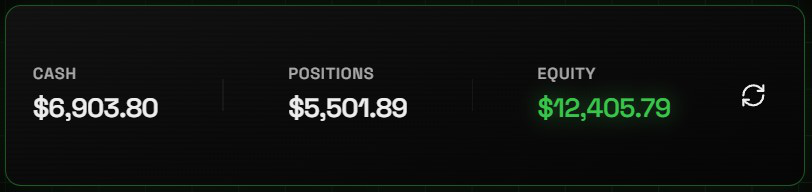
Understanding your wallet summary:
- Cash — Your available trading balance
- Positions — The current market value of your open positions
- Equity — Your total portfolio value (Cash + Positions)
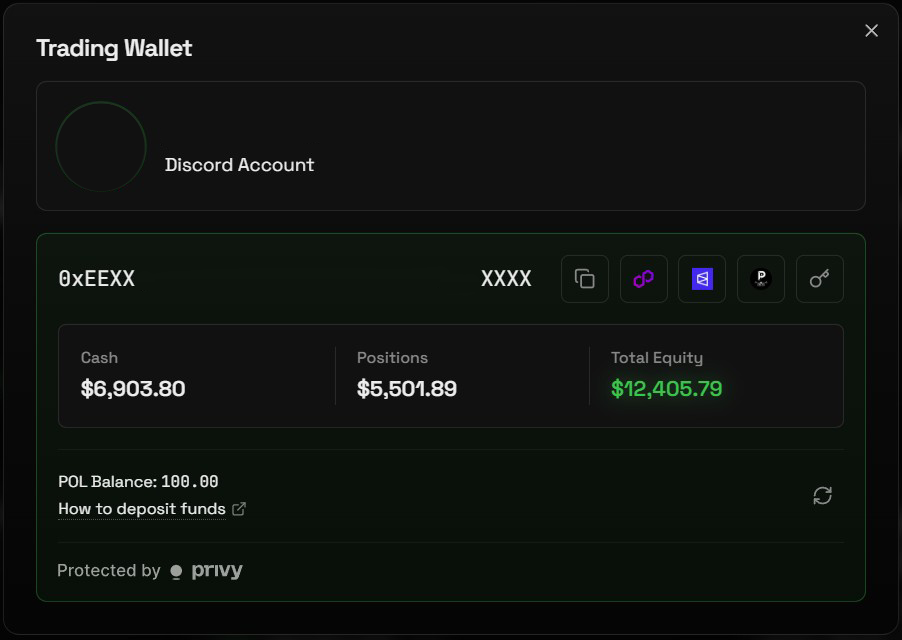
Click the wallet button next to your username to open the Trading Wallet panel.
Inside, you can view:
- Cash / Positions / Total Equity — Your balance breakdown (see above)
- POL Balance — Your gas balance on Polygon
- Deposit instructions — Funding help for your wallet
💵 Step 3: Fund Your Wallet
To start trading, send funds to your Olympus trading wallet on Polygon.
You'll generally want:
- USDC / USDC.e for trading
- A small amount of POL for gas
💡 Don't have funds on Polygon yet?
You can use a bridge such as Relay to move funds onto Polygon.
Once your deposit arrives, your wallet balance will update in Olympus.
If your funds arrive as USDC, Olympus may prompt you to convert it to USDC.e, which is used for trading on Polymarket.
👤 Step 4: If You Want to Copy Trade, Follow a Wallet
💡 Want to trade manually instead? Go to the Market pages and use the search bar in the header to find and trade any Polymarket event.
To start copy trading, you first need to follow at least one wallet.
Find wallets to follow:
- Visit the Top Wallets page in Olympus to browse traders and discover wallets to follow
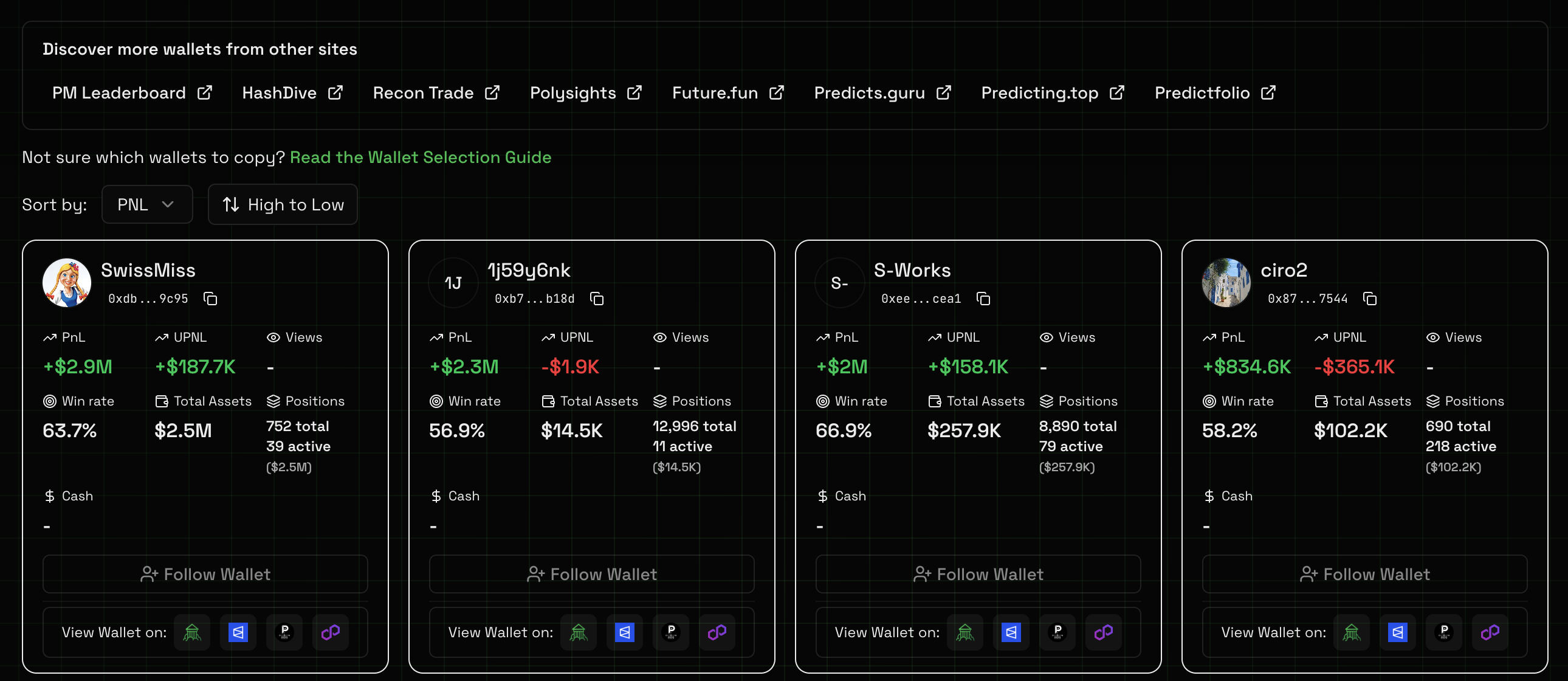
In Olympus:
- Click the green + Add Wallet button
- Paste the wallet address you want to follow
- Complete the follow flow

📢 Step 5: Set Up Discord Webhooks for Notifications
If you want trade alerts sent to Discord, you can add a webhook.
- Create a Discord webhook using this guide: https://www.youtube.com/watch?v=xIZXDdVwNaE
- Copy the webhook URL
- In Olympus, open Settings
- Paste the webhook URL into your Discord webhook field
- Click Test Webhook
- Save your changes
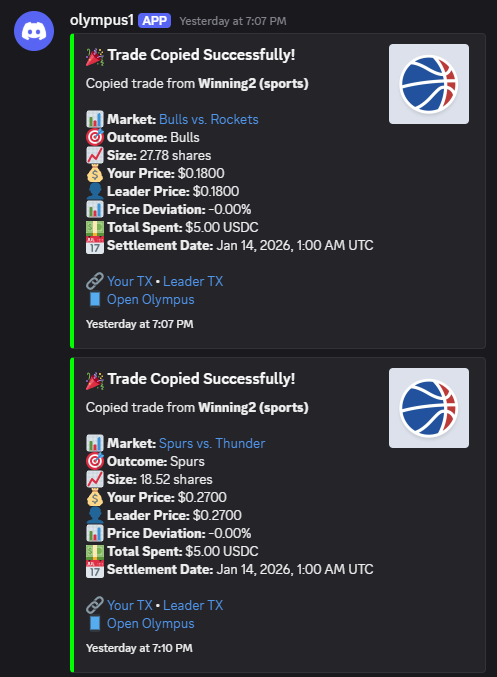
You can use one global webhook for all activity, or set wallet-specific webhooks for individual followed wallets.
💡 Why set up a webhook?
It gives you real-time trade notifications without needing to watch the dashboard.
❗ Note: Wallet-specific Discord webhooks override the global webhook.
▶️ Step 6: You're Live
By default the bot is ON!
That means:
- When a followed wallet opens or closes a trade, your trading wallet can mirror that action
- Your configured limits and settings will still be respected
Note: Olympus continues running server-side, so your copy trading can keep working even if your browser is closed.
🎉 You're All Set!
You're now ready to use Olympus for manual trading, copy trading, or both.